How to structure your content
The best formats and techniques to use when writing documentation
So you’ve made a start and written down a lot of your knowledge — great stuff! The next challenge is making sure it’s easy to read and understand. It’s time to think about the structure of your documentation, and start shuffling things around until they make logical sense.
It’s worth remembering that there’s no single correct way of structuring your documentation, so try out different solutions until you find one that works best. And don’t be afraid to rework things in future, too!
Start with a documentation template
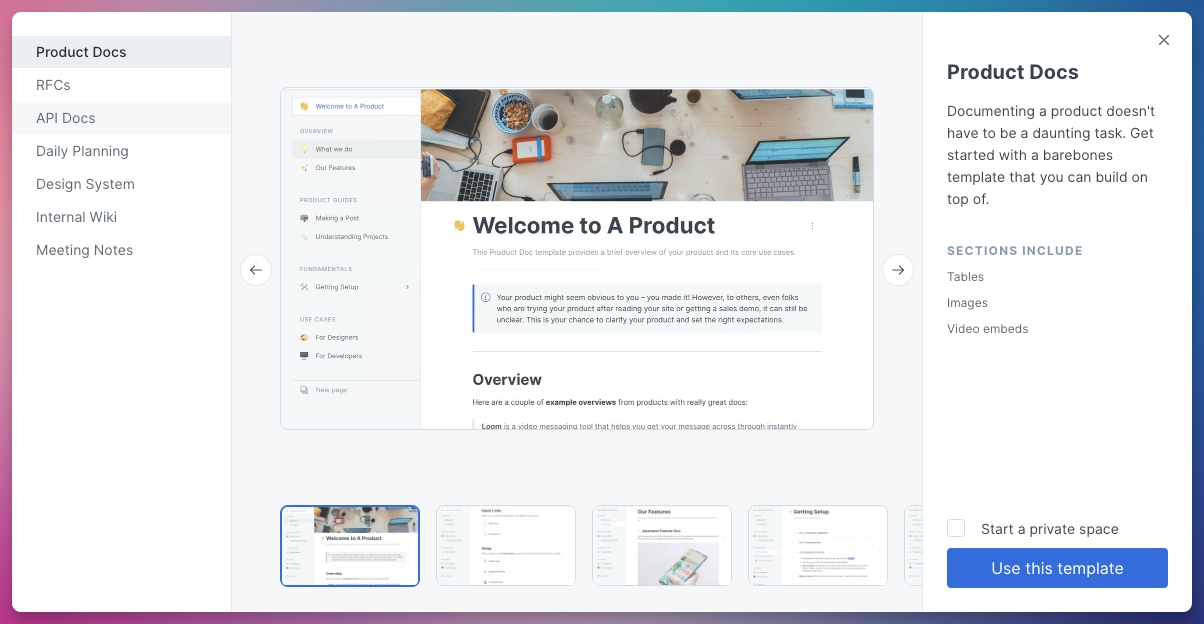
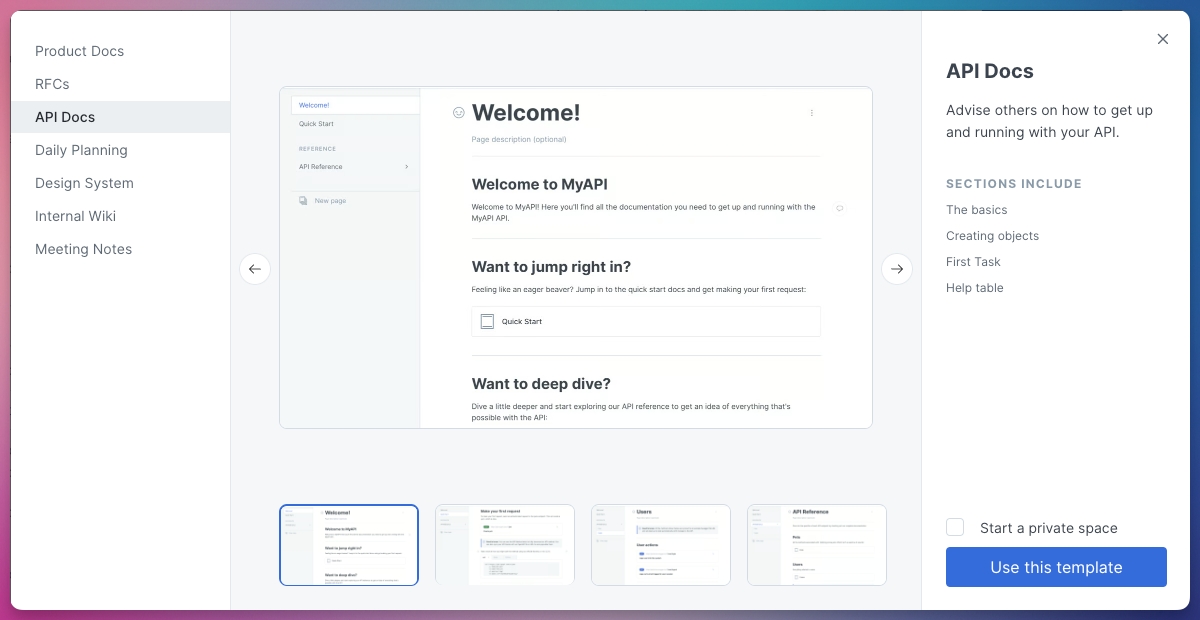
GitBook includes a few templates for free that you can use with a click. Depending on what you’re writing, you can use the product docs template or the API docs template.
Product documentation template
This simple docs template includes tables, images and video embeds. Plus it’s already organized into sections like product guides and uses cases, giving you a platform that you can build on.
API documentation template
The API docs template offers a basic structure for your documentation. The pages already include hint blocks, as well as tabbed code blocks that will help you write demo code for different languages.
Writing for SEO
As with any SEO writing, the first step is working out what your keywords should be. I’m not going to talk you through the details here — it’s a whole thing. But once you have your keywords, there are a few things you should do to improve your search ranking:
Use your keywords in the title of a page, along with H2 titles and page descriptions
Add the keyword and a few variations into the body as narturally as you can — without forcing them in. It needs to be readable!
Add any supporting keywords in subheadings within your copy
Add links to that page on other pages of your documentation — and make sure those links use those same keywords.
Follow these simple tips and you’ll increase your chances of ranking highly in search results.
Using spaces and page groups
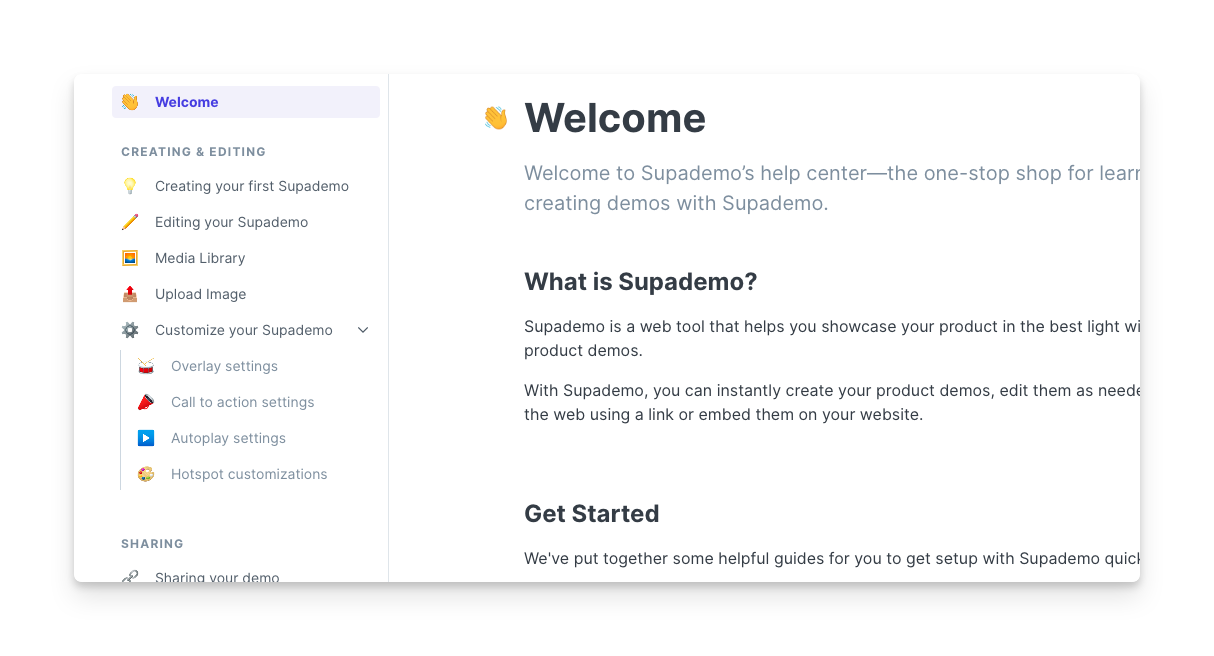
Organizing all your information can be one of the biggest challenges when working on documentation. But online knowledge sharing tools like GitBook offer plenty of structural options to help you out.
For example, in GitBook you can create spaces, which are effectively documents where you can add copy and other content to grow your documentation. Each space has its own title, and you can then add pages (and sub-pages) to a space to start building up it’s structure.
You can also group pages together — great for related topics — and give those groups titles. When you’re happy with your work, you can publish a space publicly, which makes it the perfect way to write and share your docs.
Mixing up page structure with different blocks
The other great thing about tools like GitBook is that you can add different kinds of content using ‘blocks’. Say you want to add some code, or a bullet point list, or a table… simply choose the block you need and add your content to it.
Of course, blocks for H1, H2 and H3 headings will help you structure and divide pages by topic. But there are plenty of other options — from basic formatting blocks, to cards, drawings and math equations. You can even use integration blocks from other services like Linear, Jira, Google Docs and more.
By making the most of these blocks and integrations, you can make your documentation feel more dynamic and easier to parse.
Tip: Content blocks look great! But mixing too many different formats in a single section — only use them where they make sense, or your content will end up being harder to understand
Tips and tricks to improve user experience
Here are a few quick tips for improving your documentation structure in GitBook:
Use pages and sub-pages. If your topic has several sub-topics, don’t try and force them all into one long, sprawling page that’s hard to parse or scroll through. Instead, create a shorter introductory page, then add as many sub-pages as you need.
Choose a page layout. If you’re planning to publish your content publicly, make sure you choose the right page layout for your work. In GitBook, you can choose between a docs page, an editorial post, and a landing page. You may want to mix and match depending on the content of each page.
Use Markdown. In GitBook, you can type
⌘+/to open the block menu and see all the block options. But you can also use Markdown to add some of the simpler blocks, such as headering, lists, code blocks and quotes.Import your content. Don’t sit staring at a blank page. Skip the hard part and import your content from elsewhere — whether it’s from a MS Word document, a GitBook wiki, or something else. You can even set up a bi-directional sync GitBook with GitHub, so technical people can update where development happens, and less technical people can use the more friendly GitBook editing tools.
Add alt text to your images. This is especially important for accessibility, as alt text is great for screen readers. It’s a key step to make sure everyone can use your docs.
Linking between pages. By linking to useful pages, you’ll give your readers better context for what they’re reading, and clearly signpost other related content.
Last updated